Google Sheets Add-On
This add-on connects Google Sheets to the Trading Economics API, letting you pull live economic indicators, calendar events, forecasts, market data, and more directly into your spreadsheet.
There are two ways to install it: directly from the Google Workspace Marketplace or manually by pasting the source code into Apps Script.
Requirements
- A Google account with access to Google Sheets
- A Trading Economics API key
Method 1
Method 1 — Install from Google Workspace Marketplace
Use this method to install the add-on directly from Google Sheets in a few clicks.
Step 1 — Open the Add-ons Marketplace
- Open a Google Sheets spreadsheet.
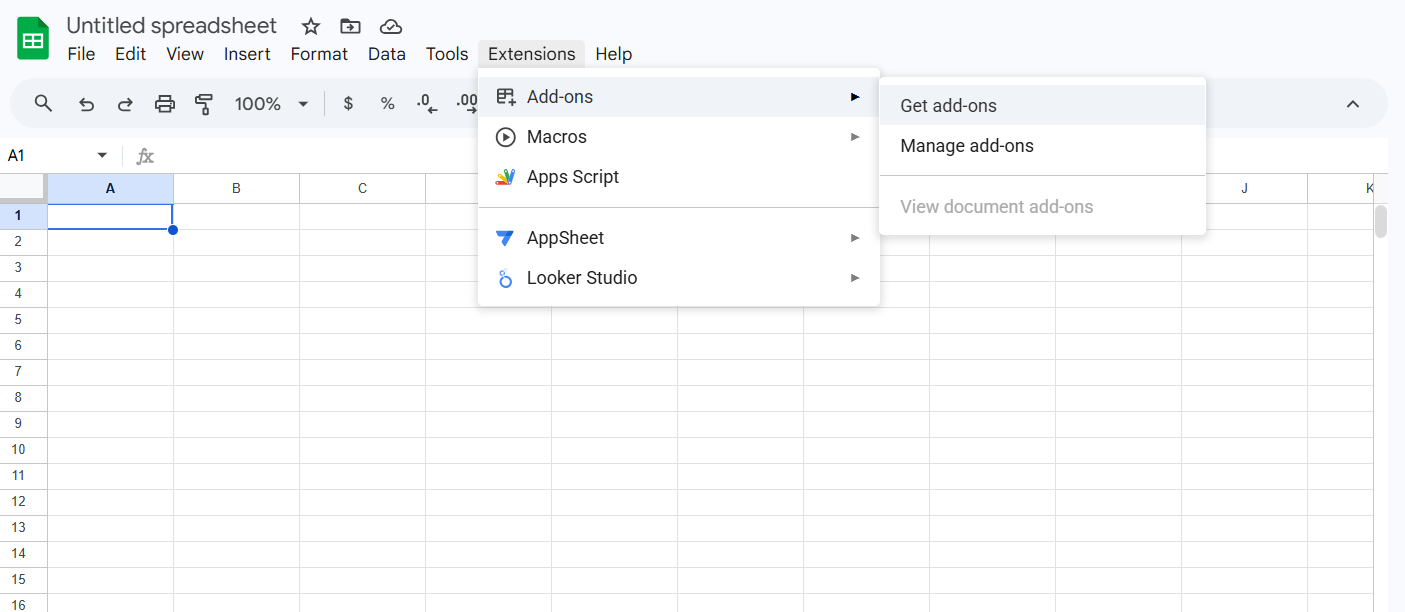
- Go to Extensions → Add-ons → Get add-ons.
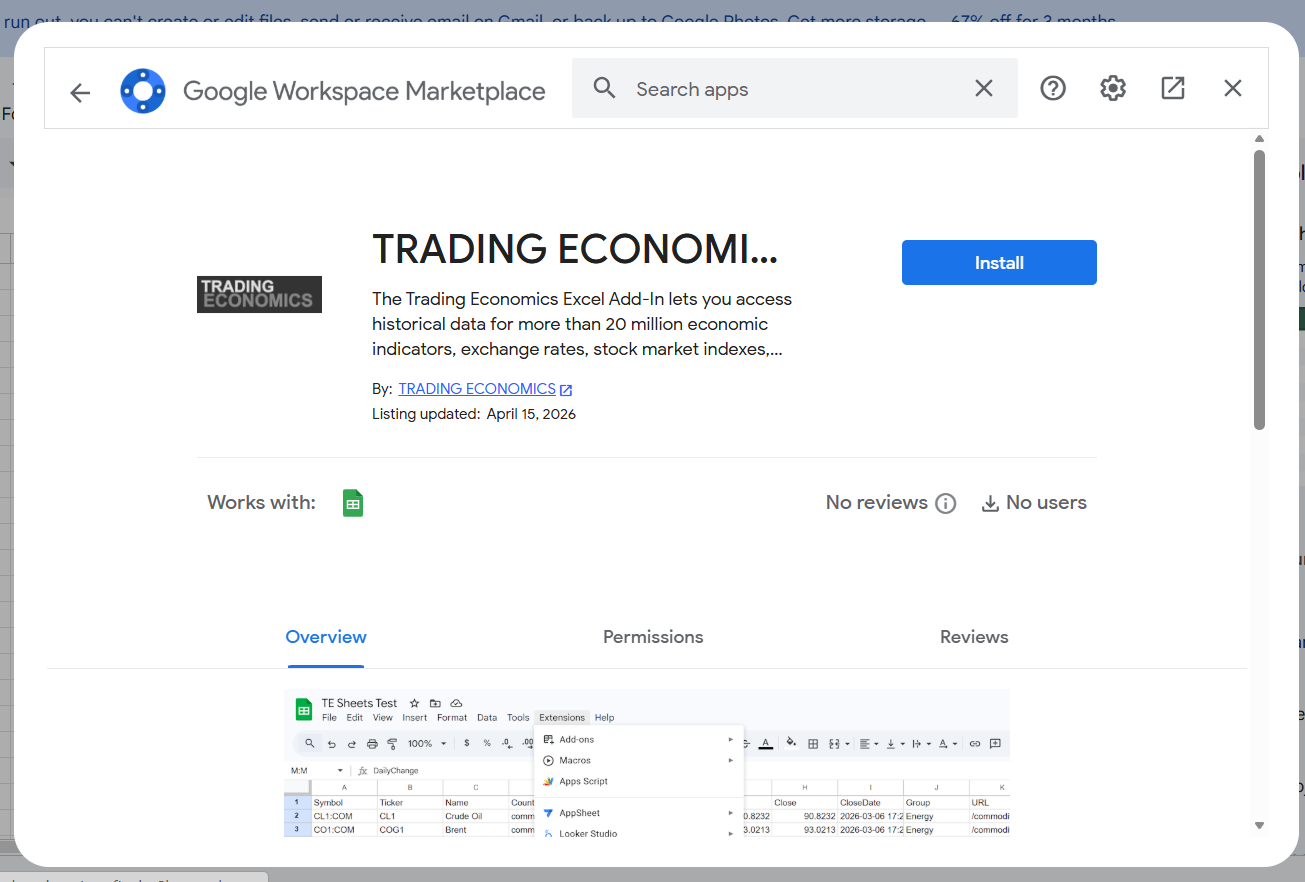
- In the Google Workspace Marketplace, search for Trading Economics.
- Click Install on TRADING ECONOMICS Sheets Add-on.
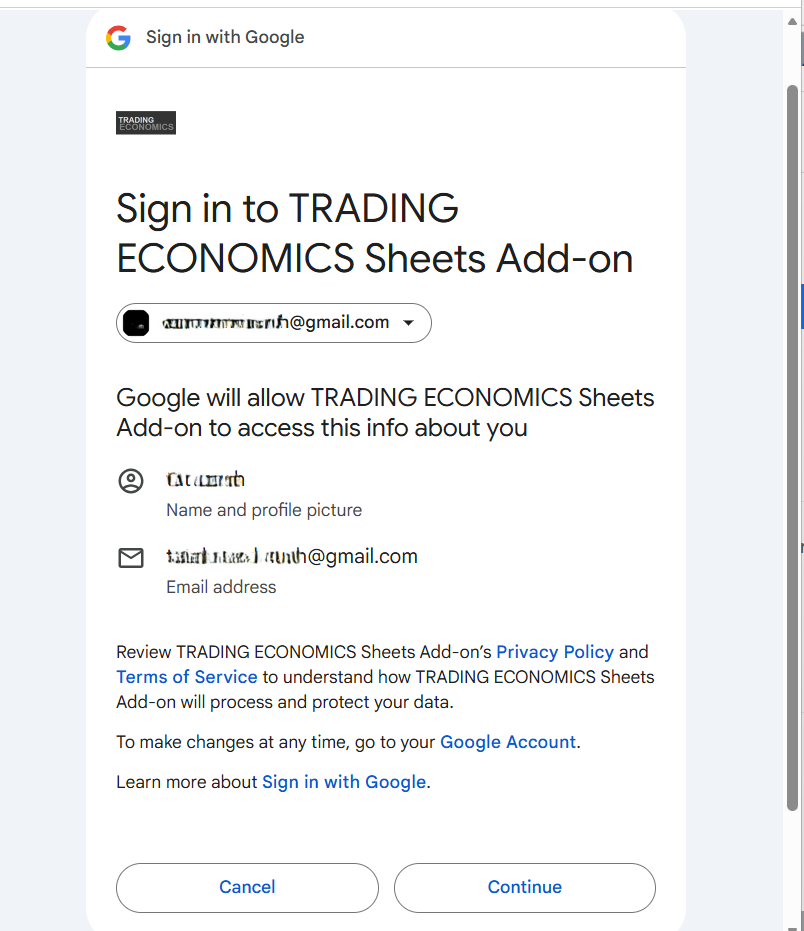
Step 2 — Sign In Popup
A Google popup will appear asking you to sign in to the TRADING ECONOMICS Sheets Add-on.
- Click Continue.
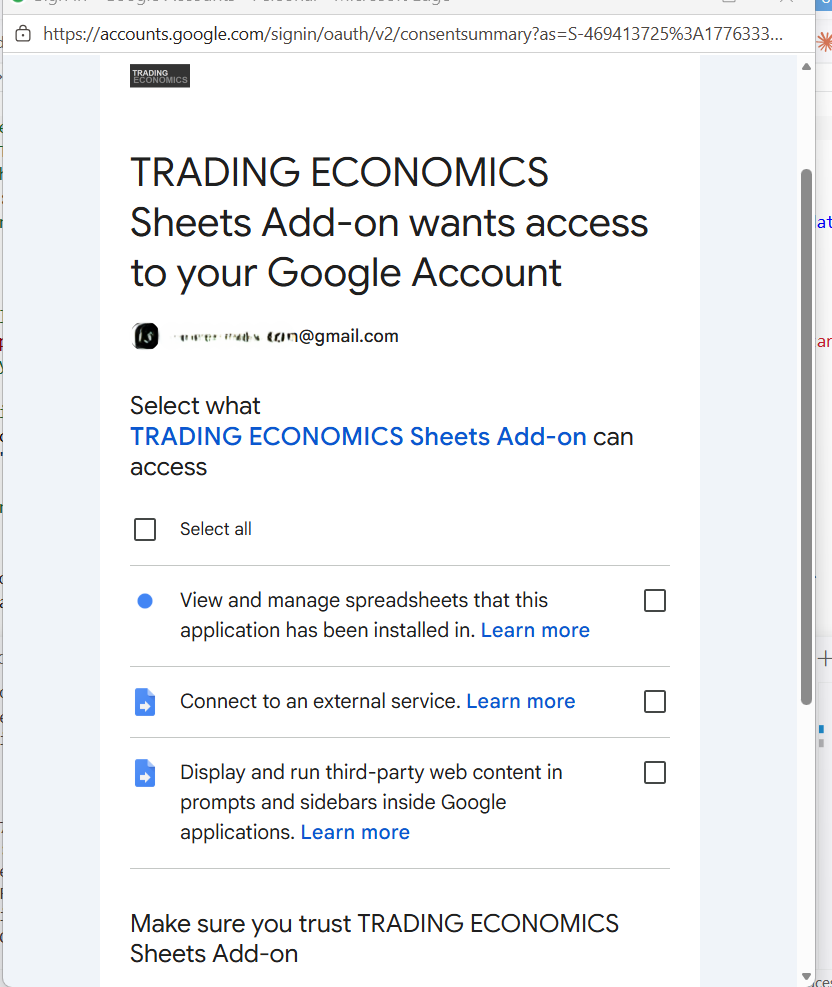
Step 3 — Grant Permissions
In the next Google popup, grant the required access permissions.
- Click Select all.
- Click Continue.
Step 4 — Open the Add-On
After the permissions are accepted:
- Go to Extensions.
- Click TRADING ECONOMICS Sheets Addon to access indicators, calendar, markets, and settings.
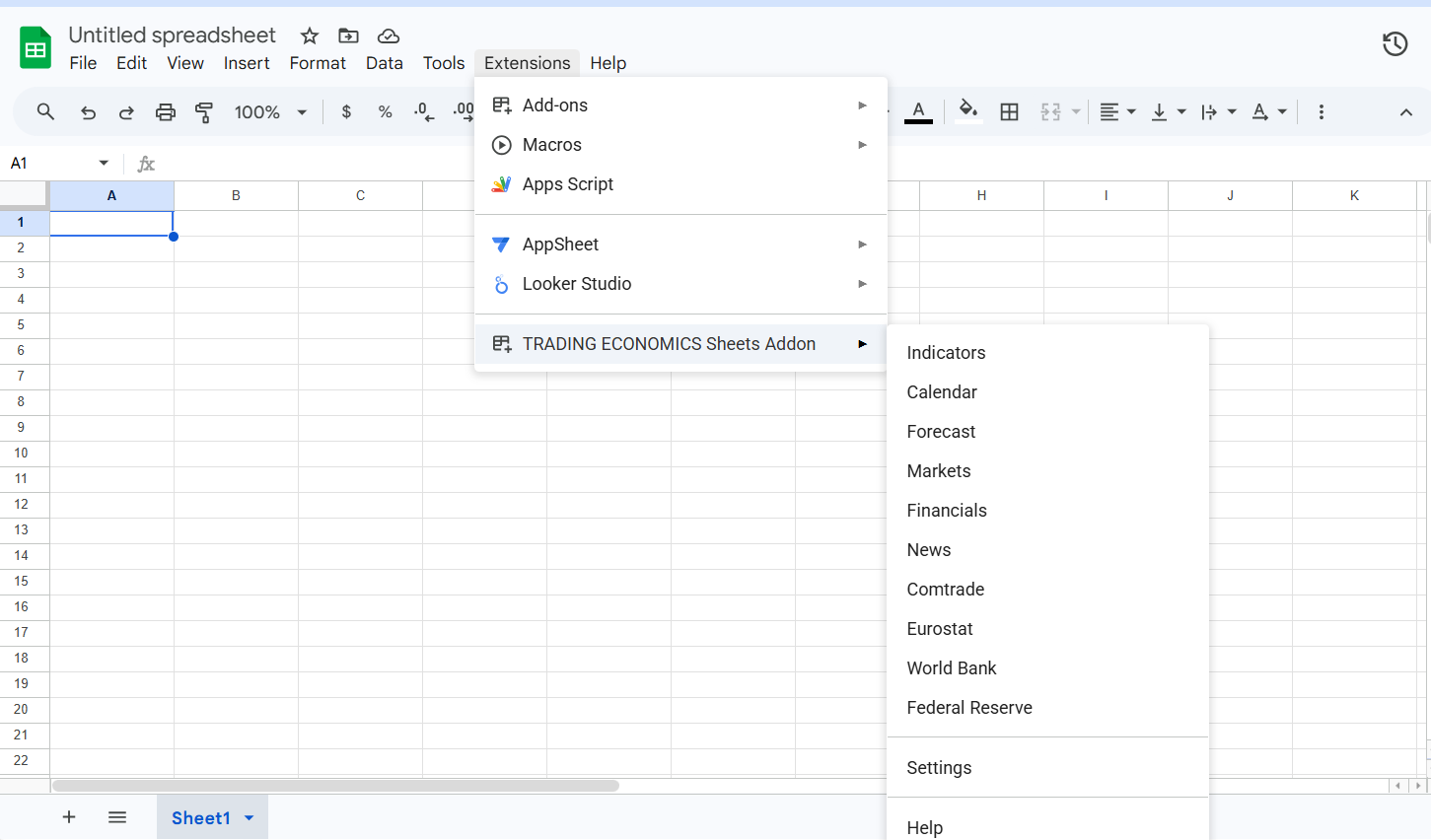
- Click Settings and enter your Trading Economics API key to start fetching data.
Method 2
Method 2 — Install from Source Code (Apps Script)
Use this method if you want to install the add-on by pasting the project files directly into Apps Script.
Step 1 — Open the Apps Script Editor
- Open your Google Sheets spreadsheet.
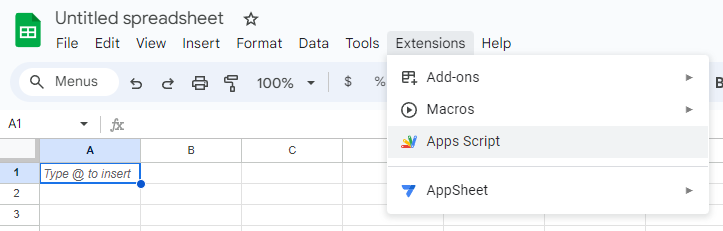
- In the menu bar, go to Extensions → Apps Script.
The Apps Script editor will open in a new browser tab.
Step 2 — Add the Script Code
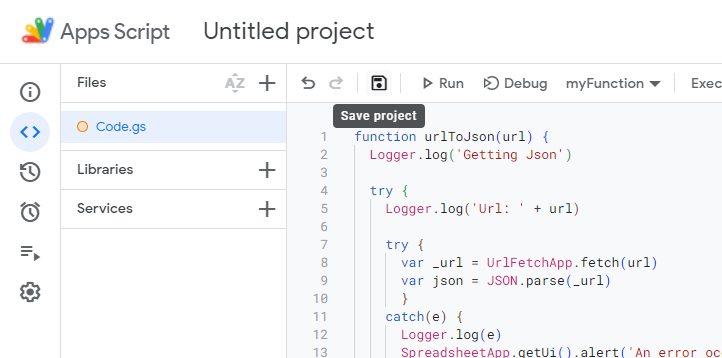
- In the Apps Script editor, click on the default
Code.gsfile in the left panel. - Delete all existing content in the editor.
- Copy the full contents of Code.gs and paste it into the editor.
- Press Ctrl + S (or Cmd + S on Mac) to save.
Step 3 — Configure the Manifest
The appsscript.json manifest declares the OAuth permissions the add-on needs to communicate with Google Sheets and the Trading Economics API.
- In the Apps Script editor, click Project Settings (the gear icon in the left panel).
- Check the box labelled “Show ‘appsscript.json’ manifest file in editor”.
- Go back to the Editor view —
appsscript.jsonwill now appear in the file list. - Click on
appsscript.json, delete all existing content, and paste in the following:
{
  "timeZone": "Etc/UTC",
  "dependencies": {},
  "exceptionLogging": "STACKDRIVER",
  "runtimeVersion": "V8",
  "oauthScopes": [
    "https://www.googleapis.com/auth/script.storage",
    "https://www.googleapis.com/auth/spreadsheets",
    "https://www.googleapis.com/auth/script.container.ui",
    "https://www.googleapis.com/auth/script.external_request"
  ]
}
- Press Ctrl + S (or Cmd + S on Mac) to save.
Step 4 — Add the Sidebar HTML File
- In the Apps Script editor, click the + icon next to Files in the left panel and choose HTML.
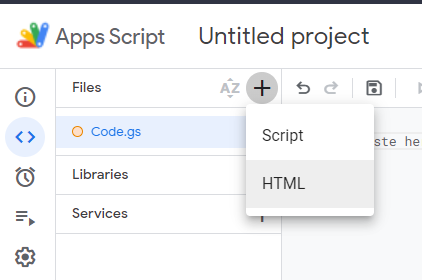
- Name the new file exactly
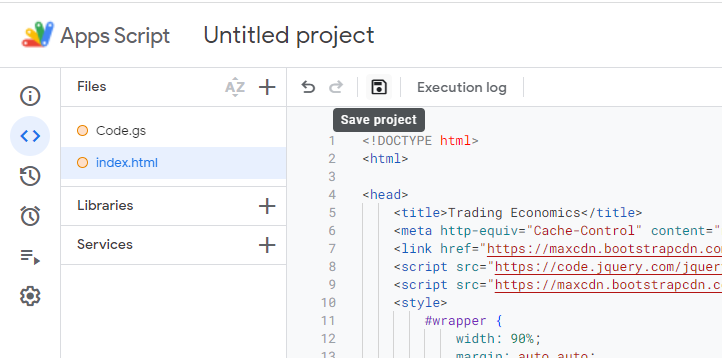
Sidebar(the editor will append.htmlautomatically). - Delete all existing content in the new file.
- Copy the full contents of Sidebar.html and paste it into the editor.
- Press Ctrl + S (or Cmd + S on Mac) to save.
Step 5 — Activate the Add-On
- Go back to your Google Sheets spreadsheet and refresh the page.
- After a few seconds, a new TE menu will appear in the menu bar.
- Click TE → Settings and enter your Trading Economics API key to start fetching data.

Ensure your spreadsheet has enough rows (10,000+) before making a request.
- If you need more rows, scroll to the bottom and click “Add” to add more rows.
Notes
Notes
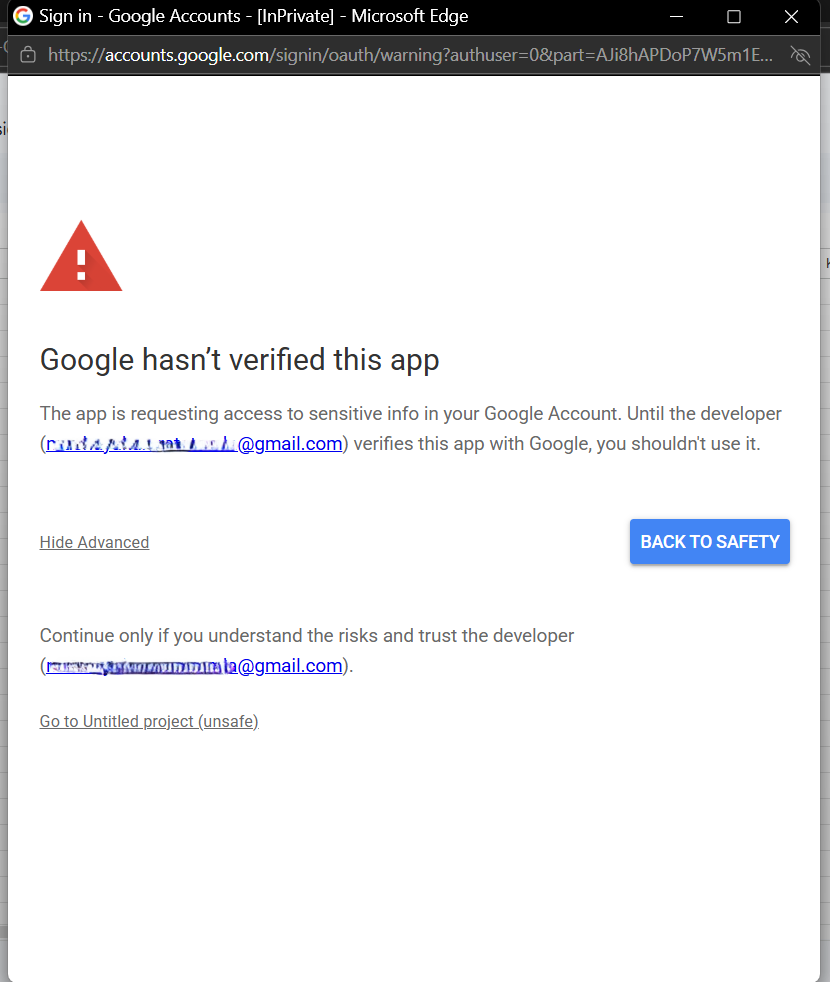
1 - The first time you use the Add-On, a warning might appear stating “This app isn’t verified.”
- Click on “Advanced”
- Click on “Go to (project name) (unsafe)” to continue using our Add-On.
This warning appears because the script runs under your own Google account. The code is fully open source and visible in the repository.