Trading Economics Excel Web Add-In
The Trading Economics Excel Web Add-In connects Excel Online and Office 365 to our API, which provides direct access to 300,000 economic indicators, exchange rates, stock market indexes, government bond yields, and commodity prices. It allows you to download millions of rows of historical data, to query our real-time economic calendar, and to subscribe to updates directly in your browser.

Installation
Installation
The Trading Economics Excel Web Add-in is available on the Microsoft Office Store and can be installed on all platforms including Excel for Web (browser), Excel for Mac, and Excel for Windows. You only need to install it once, and it will be available across all your devices where you’re signed in with the same Microsoft account.
Installing from Microsoft Office Store
Step 1: Open Excel
- For Excel Online (Web): Go to office.com in your web browser and click on Excel to open it
- For Excel Desktop (Mac or Windows): Open the Excel application on your computer
Step 2: Create or Open a Workbook
- Create a new blank workbook, or open an existing Excel file where you want to use the Trading Economics data
Step 3: Access the Add-ins Store
- Look at the top of your Excel window for the ribbon menu (the toolbar with tabs like Home, Insert, etc.)
- Click on the Insert tab (in some versions this might be the Home tab)
- Look for the Add-ins button and click it
- From the dropdown menu, select Get Add-ins (this may also be labeled as More Add-ins or Office Add-ins)
Step 4: Search for Trading Economics
- A new window called “Office Add-ins” will open
- You’ll see a search box at the top of this window
- Type “Trading Economics” in the search box (exactly as shown)
- Press Enter or click the search icon
Step 5: Install the Add-in
- You should see the Trading Economics add-in appear in the search results
- Click on the Trading Economics add-in to view its details
- Click the Add button (or Get it now button depending on your version)
- The add-in will automatically download and install - this usually takes just a few seconds
Step 6: Start Using the Add-in
- After installation is complete, you should see a TE button appear in your Excel ribbon
- The TE button is usually located in the Home tab or in a separate Add-ins section
- Click the TE button to open the Trading Economics taskpane on the right side of your Excel window
- You’re now ready to start getting economic data!
If You Don’t See the Add-in After Installing
Sometimes the add-in might be installed but not visible. Here’s how to activate it:
- Click on the Insert tab in the Excel ribbon
- Click Add-ins → My Add-ins
- Look for Trading Economics under the “My Add-ins” section
- Click on it to activate and open the taskpane
For Enterprise/Organization Users
If you’re using Excel through your company or school:
- Your IT administrator may need to approve or deploy the add-in for you
- Contact your IT department if you cannot access the Office Add-ins store
- Once your IT team deploys it, the add-in will automatically appear for all users in your organization
Requirements
- Excel for Web: Any modern web browser (Chrome, Firefox, Safari, Edge) - free to use with a Microsoft account
- Excel for Mac: Excel 2016 or newer on macOS
- Excel for Windows: Excel 2013 or newer on Windows
- Internet connection: Required to download data from Trading Economics
Uninstall
If you need to remove the Trading Economics Excel Web Add-in:
- Open Excel (Web, Mac, or Windows)
- Click on the Insert tab
- Click Add-ins → My Add-ins
- Find the Trading Economics add-in in the list
- Right-click on it (or click the three dots menu)
- Select Remove or Uninstall
- Confirm that you want to remove the add-in
The add-in will be removed from all devices connected to your Microsoft account.
Login
Login
First Time Using the Add-in
After installing the Trading Economics Excel Web Add-in, you need to open it and set up your access credentials.
Step 1: Open the Trading Economics Add-in
- Open Excel (Web, Mac, or Windows)
- Look for the TE button in your Excel ribbon (usually in the Home tab or Add-ins section)
- Click the TE button
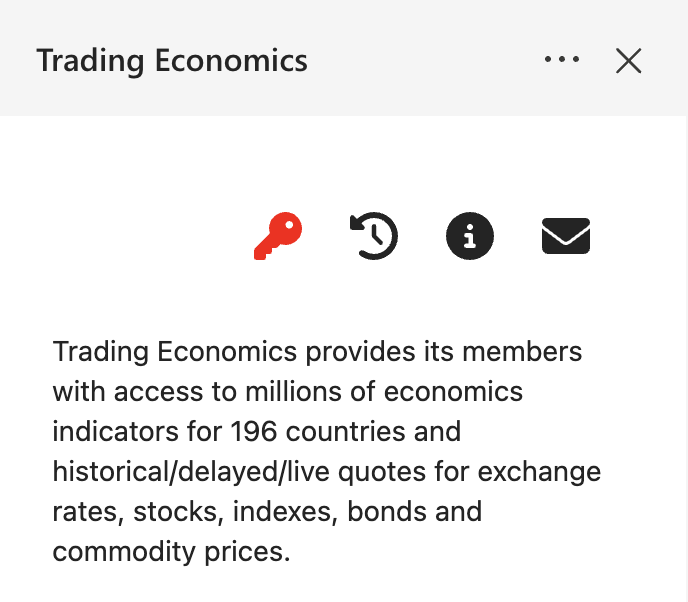
- A taskpane (side panel) will appear on the right side of your Excel window - this is the Trading Economics interface
Step 2: Understanding Guest Access
- The first time you use the add-in, you will be automatically logged in as “guest:guest”
- Guest access gives you limited access to sample data so you can try out the add-in
- You’ll see a message or indicator showing you’re using guest access
- Visual Indicator: When using guest access or when no API key is set, the key icon in the taskpane will appear red
- To access the full range of data and features, you’ll need to upgrade to a paid subscription and enter your API key
Step 3: Getting Full Access
To overcome the limitations of guest access and get full access to all economic data:
- Subscribe to a plan: If you don’t have a subscription yet, visit Trading Economics Pricing to choose a plan that fits your needs
- Get your API credentials: After subscribing, you will receive your API key (credentials) via email
- Enter your API key: Follow the instructions in the “API Key” section below to enter your credentials
API Key
API Key
Setting Up Your API Key
By default, when you first use the Trading Economics Excel Web Add-in, you will be logged in as guest:guest with limited access to sample data only. To access the full database of economic indicators, markets, and financial data, you need to enter your API key.
What is an API Key?
Your API key is a unique set of credentials (like a username and password combined) that Trading Economics provides to identify your subscription and give you access to the data you’ve paid for. It looks like this: your_client:your_secret
Step 1: Get Your API Key
If you don’t have an API key yet:
- Visit the Trading Economics Pricing page
- Choose a subscription plan that fits your needs
- Complete the subscription process
- You will receive your API key via email after your subscription is confirmed
- Your API key will be in the format:
client_name:client_secret
Step 2: Open the API Key Input
- Make sure the Trading Economics taskpane is open (click the TE button in your Excel ribbon if it’s not)
- Look at the top of the Trading Economics taskpane
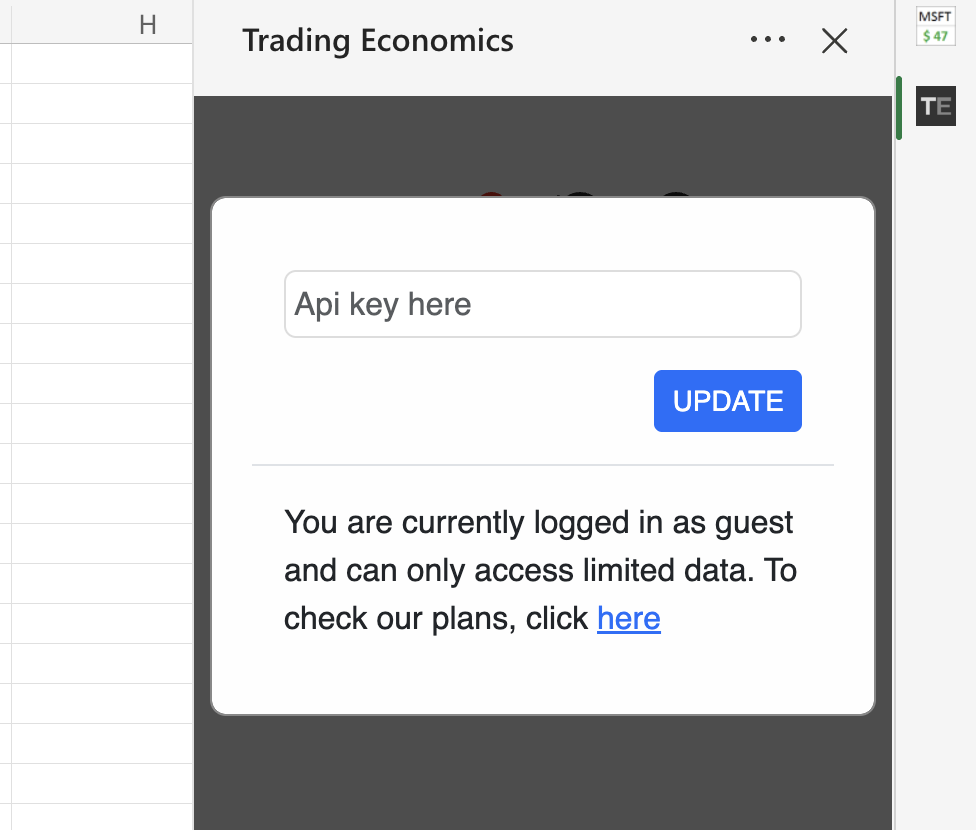
- Find and click the key icon (it looks like a key)
- An input field will appear where you can enter your API key
Step 3: Enter Your API Key
- After clicking the key icon, an input field will appear
- You may see the default guest credentials
guest:guestin the field - Click in the input field to select the text
- Delete the guest credentials (if present)
- Carefully type or paste your API key (it should look like
your_client:your_secret) - Make sure there are no extra spaces before or after your API key
- Double-check that you’ve entered it exactly as it appears in your subscription email
Step 4: Save Your API Key
- After entering your API key, click the UPDATE button
- The system will save your new credentials
- You should see a confirmation that your API key has been saved
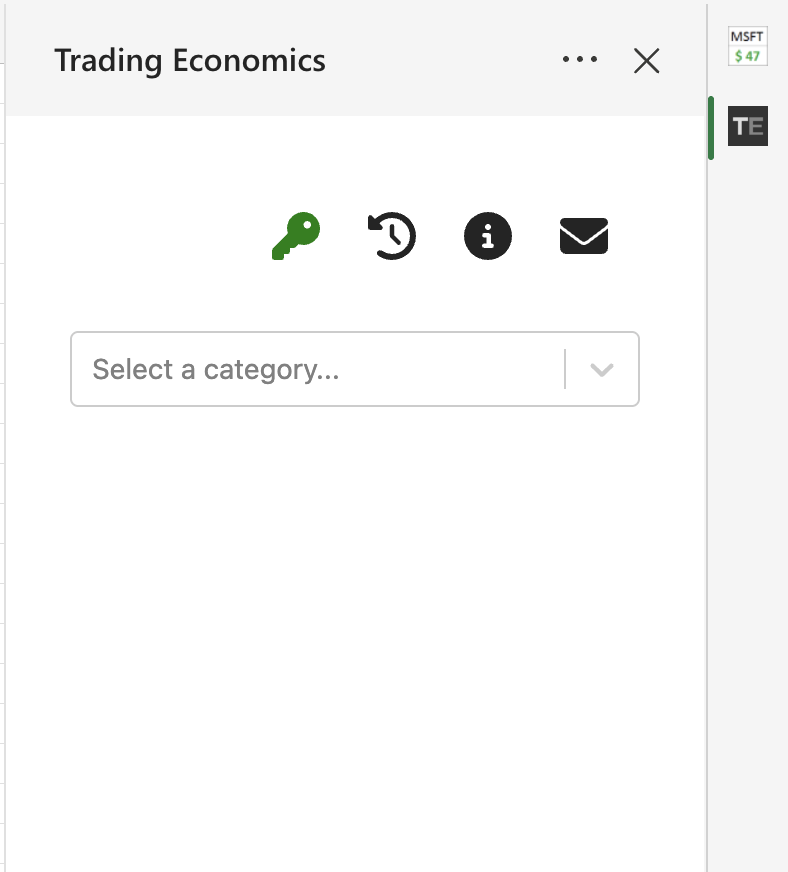
- Visual Confirmation: Once your API key is successfully saved and validated, the key icon in the taskpane will change from red to green, indicating that you have full access
- You now have full access to all the data included in your subscription plan!
Troubleshooting API Key Issues
If your API key doesn’t work:
- Make sure you copied the entire key including both parts (before and after the colon
:) - Check for any extra spaces at the beginning or end
- Verify the key is exactly as it appears in your subscription email
- Make sure your subscription is active
- Contact Trading Economics support if problems continue
Changing your API key:
- You can update your API key at any time by following the same steps above
- This is useful if you upgrade your subscription or if your key changes