Trading Economics Excel Add-In
The Trading Economics Excel Add-In connects Excel to our API which provides direct access to 300.000 economic indicators, exchange rates, stock market indexes, government bond yields and commodity prices. It allows you to download millions of rows of historical data, to query our real-time economic calendar and to subscribe to updates.
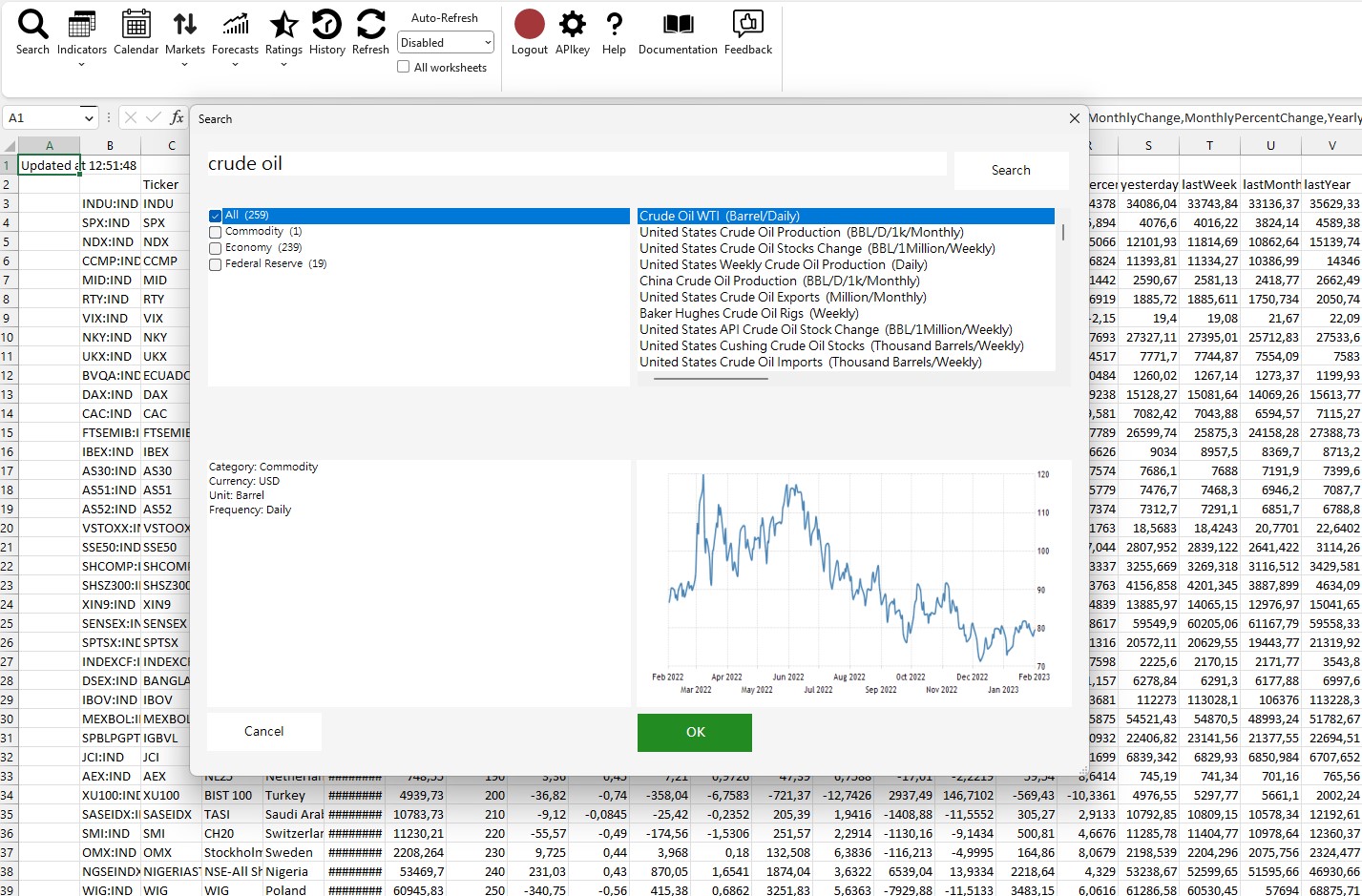
Installation
Installation
The Trading Economics Excel Add-In installer can be downloaded here: Download TE Excel Add-In.
Requirements: Microsoft Windows with Excel 2010, 2013 or 2016 and Office 365.
Note: If Windows shows a warning just click on “More info” and then install.
Uninstall
- Open the control panel.
- Under programs, click on Uninstall a program.
- Search for Trading Economics Excel Add In
- Right click and click Uninstall
Login
Login
After installing the Add-In, open Excel, click the TE tab, and then click Login. To access data, enter your API key in the APIkey menu (see API Key below).
If you do not have an API key yet, visit the API pricing page and subscribe to a plan.

API Key
API Key
- To use this Add-In, you need a Trading Economics API key.

If you do not have a key yet, subscribe on the API pricing page.
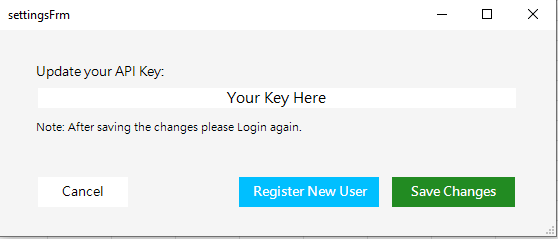
Paste your API key in this menu.
After changing the API key, click Save Changes and then Login to refresh permissions.
Troubleshooting
Troubleshooting
Use this section if the add-in installs but the TE tab does not appear, does not load, or formulas behave unexpectedly. The checks are ordered from the most common cause to the least common, so follow them top to bottom.
1. Verify the installation folder
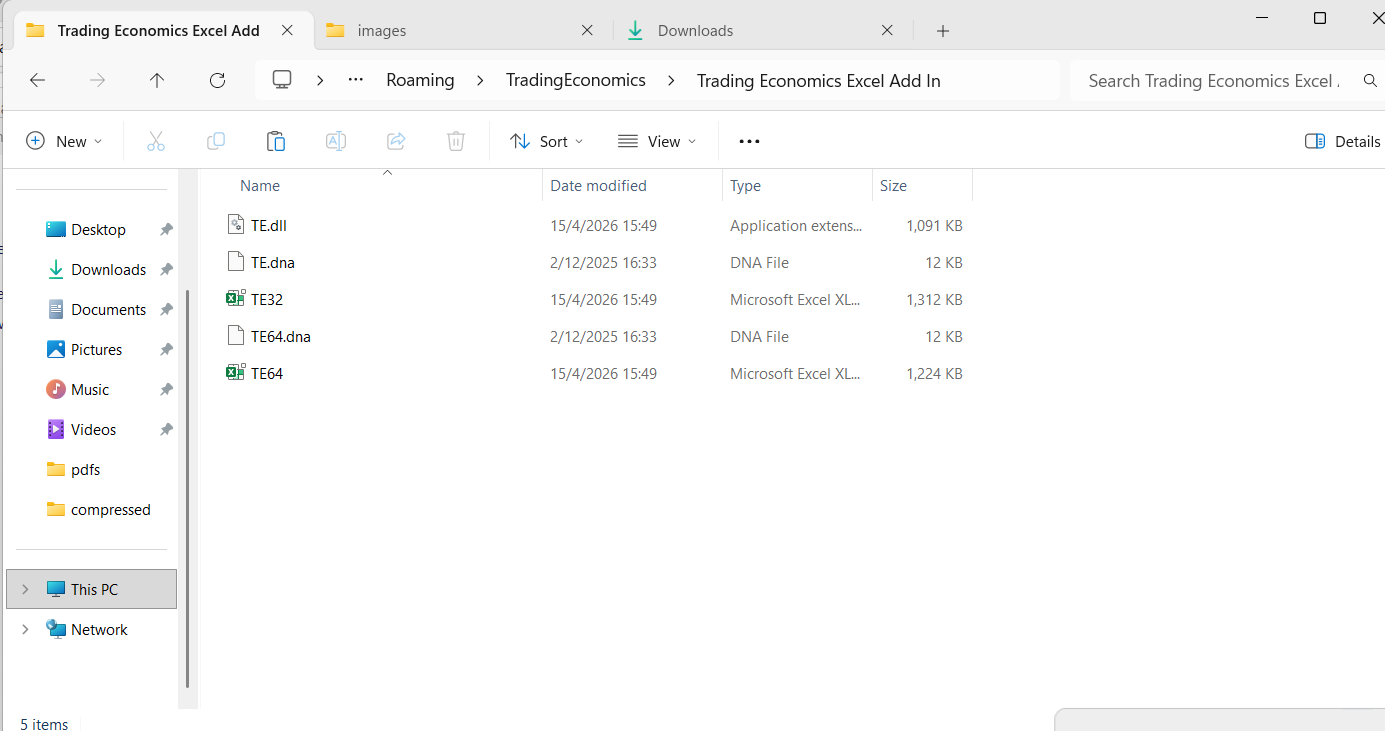
First, confirm that the Trading Economics folder exists and is complete.
The default location is:
*C:\Users\your-user\AppData\Roaming\TradingEconomics\Trading Economics Excel Add In*
This folder should contain the core add-in files:
- TE.dll
- TE.dna
- TE32
- TE64.dna
- TE64
After the add-in has been used, you may also see:
- teLogs
- teLogsArchive
- APIKey
- FormulaHistoric
If any of the core files are missing, the installation is incomplete. Reinstall the add-in and verify the folder again before reopening Excel.
2. Enable the add-in in Excel (TE tab not visible)
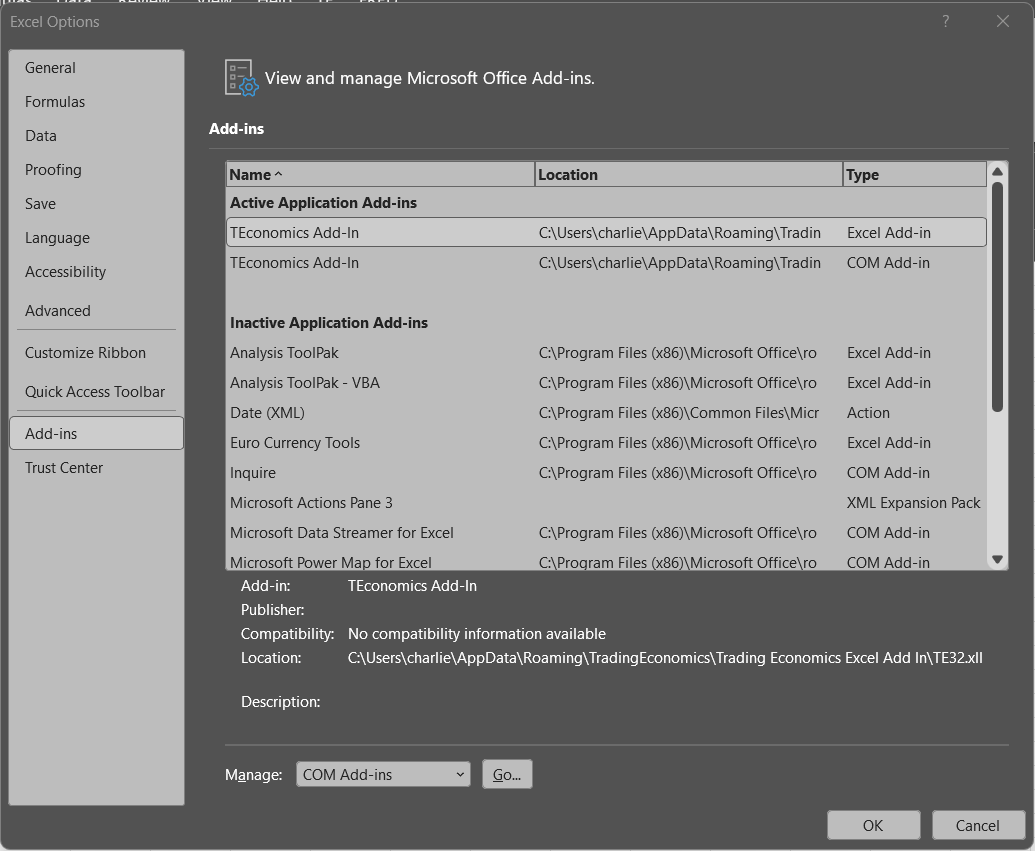
If the folder is fine but the TE tab does not appear in the Excel ribbon, the add-in is probably not registered. Open File > Options > Add-ins. You will need to check two lists in the Manage: dropdown at the bottom: Excel Add-ins and COM Add-ins.
a. Register the Excel Add-in
In Manage: choose Excel Add-ins and click Go.
If TEconomics Add-In is listed, make sure its checkbox is enabled.
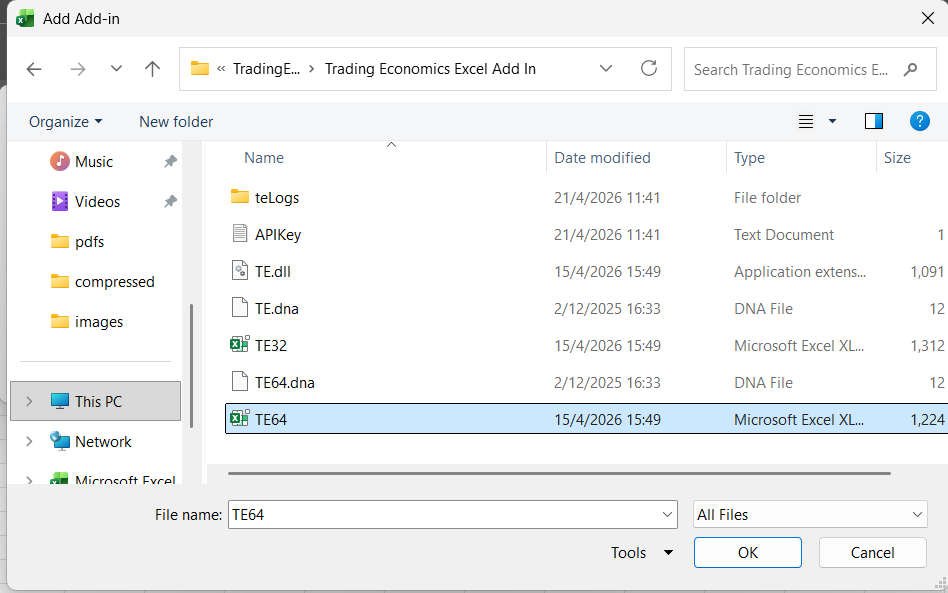
If it is not listed, click Browse… and navigate to the installation folder:
*C:\Users\your-user\AppData\Roaming\TradingEconomics\Trading Economics Excel Add In*
Select the file that matches your Excel version:
- TE32 if your Office/Excel is 32-bit.
- TE64 if your Office/Excel is 64-bit.
To check your Office bitness, go to File > Account > About Excel and look for “32-bit” or “64-bit” at the top of the dialog.
b. Enable the COM Add-in
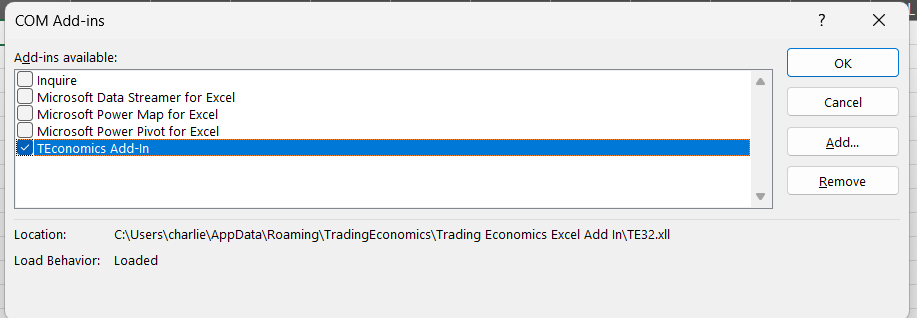
- Back in the Add-ins screen, in Manage: choose COM Add-ins and click Go.
- Enable the TEconomics Add-In checkbox and click OK.
- Confirm that Load Behavior shows Loaded.
Restart Excel after making these changes.
3. Check the Trust Center
If the add-in is registered but Excel still blocks it, the Trust Center settings are the next place to look.
a. Allow application add-ins
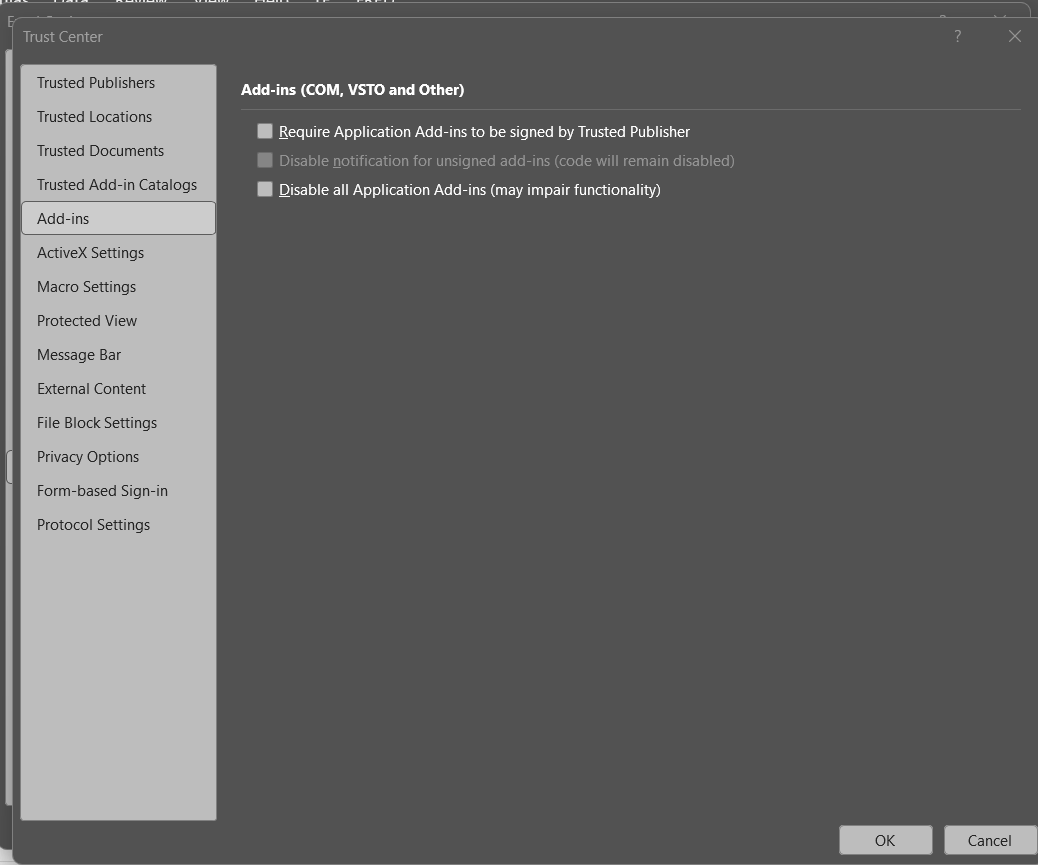
Go to File > Options > Trust Center > Trust Center Settings and click Add-ins in the sidebar. All three checkboxes should be unchecked. In particular, make sure Disable all Application Add-ins is not selected, or Excel will block the TE add-in from loading.
b. Add the install folder as a Trusted Location
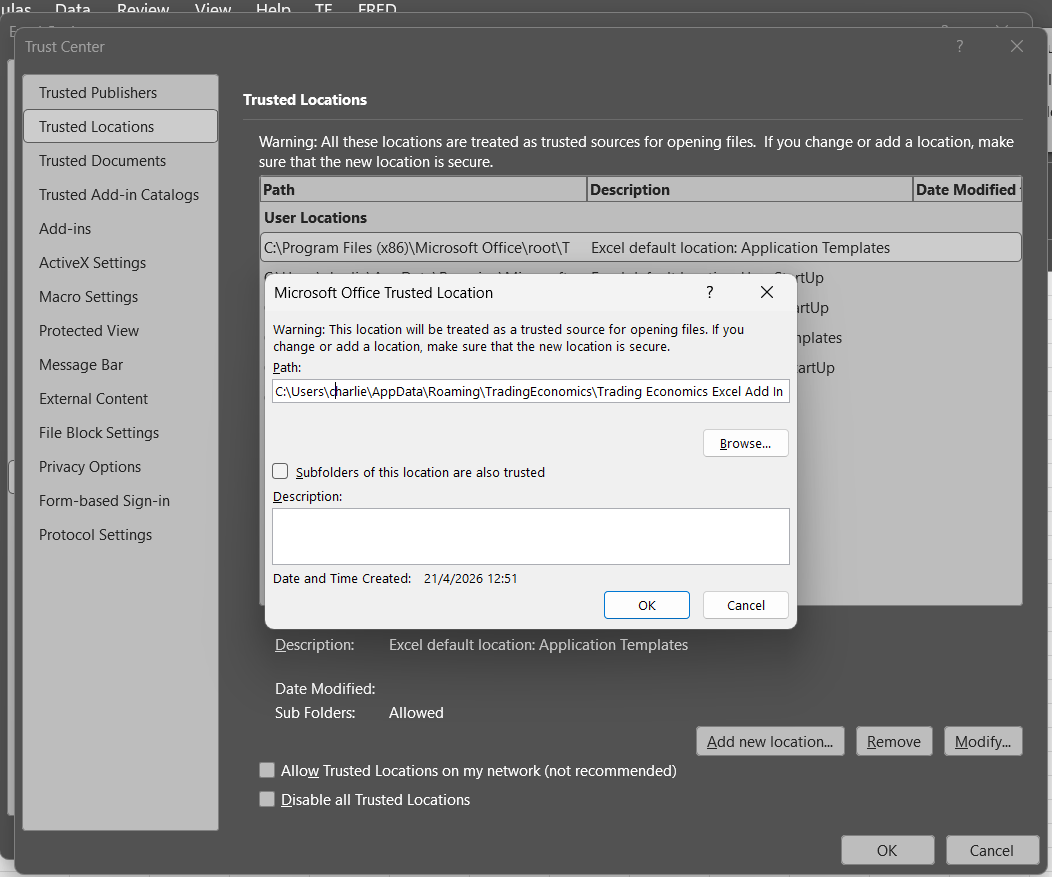
Still in the Trust Center, click Trusted Locations in the sidebar.
Click Add new location… and browse to the installation folder:
*C:\Users\your-user\AppData\Roaming\TradingEconomics\Trading Economics Excel Add In*
Check Subfolders of this location are also trusted.
Click OK to confirm, then restart Excel.
Re-enable the TE add-in as described above and restart Excel again.
4. Formulas recalculate automatically on open
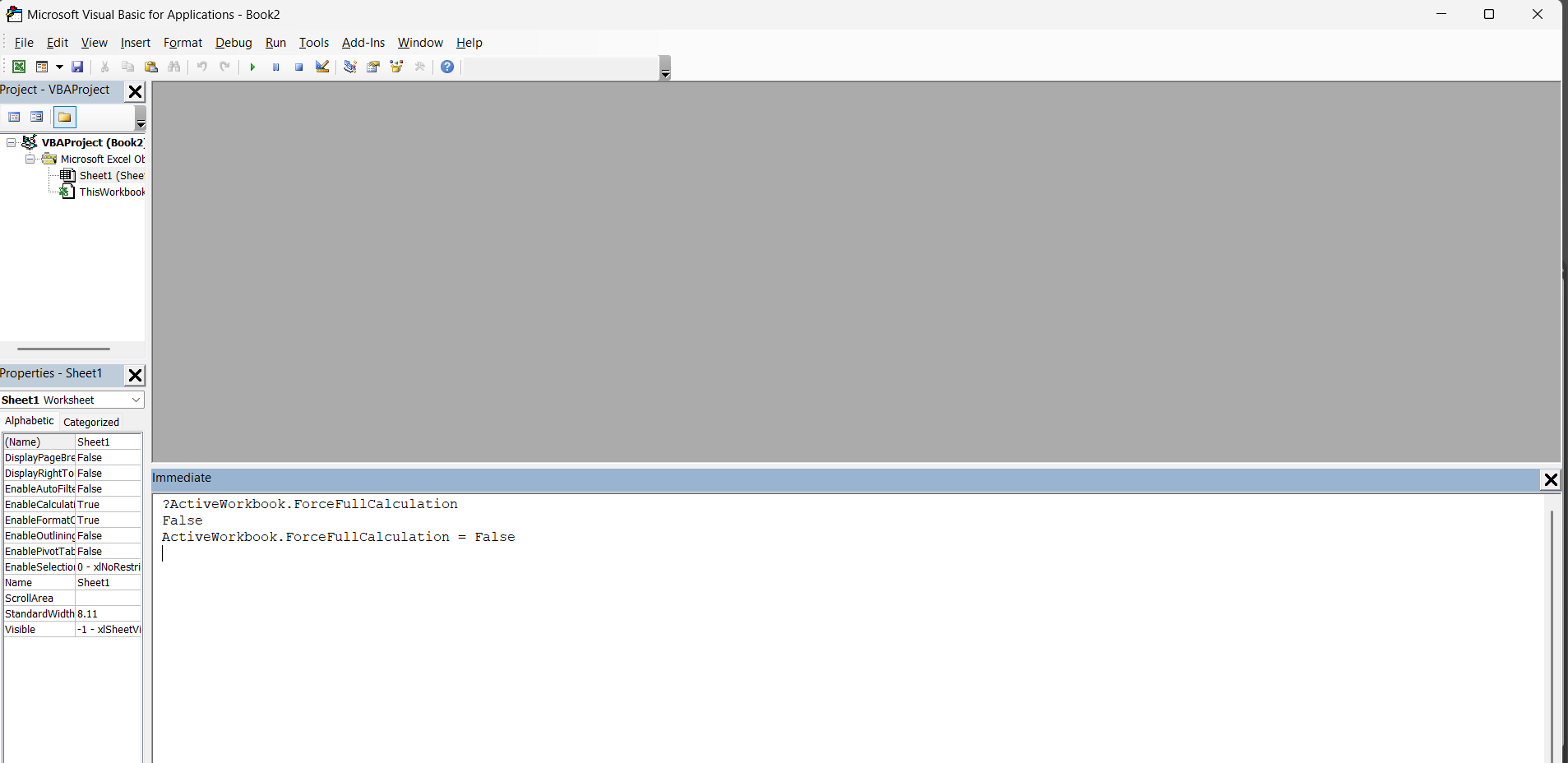
If TE formulas refresh every time you open a workbook, the workbook likely has Force Full Calculation enabled. To disable it:
Open the affected Excel file.
Press ALT + F11 to open the VBA editor.
Press CTRL + G to open the Immediate window at the bottom of the screen.
Check the current status by running:
?ActiveWorkbook.ForceFullCalculationIf it returns True, turn it off by running:
ActiveWorkbook.ForceFullCalculation = FalseSave the workbook to keep the change.
Close Excel, reopen the file, and check if the issue persists.
Still not working?
If none of the steps above resolve the issue:
- Close all Excel windows and reopen Excel.
- Run the installer again as Administrator.
- Collect the log files inside the teLogs folder and share them with the Trading Economics support team.